How it works
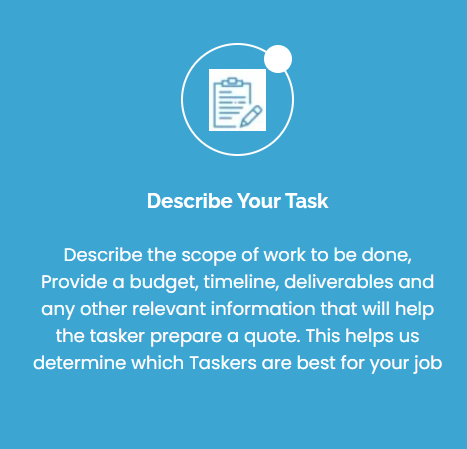
Complete a task work in just 3 steps, to start click on POST A JOB
CUSTOMERS GUIDE
How to Sign-up for an Account
To create an account click on SIGN UP button at the top right hand corner of the website, a sign up window opens, click on CUSTOMER and fill in your details. Provide your email address as you will be required to verify it to activate your account. Click on ”Generate One time Password to Confirm Email” below the Padlock icon. One time password will be sent to your email, it is required to enter it into the box beside the padlock to continue the sign-up process.
Customers Sign-up for an Account
Customer’s Dashboard
Customers can login into their account after signing up and complete their profiles on the dashboard.
Customer profile setting page

My Profile – All profiles such as; name, picture, contact details and password, can be completed and update at any time.
My Favorites – This is where service provider that is added as a favorite are stored
Bookings – This section is where upcoming and past completed bookings are found. You can mark a job as complete under this heading, select the particular job, click the option arrow button and select VIEW BOOKING, The booking opens and you can MARK AS COMPLETE
Schedule – Where jobs are scheduled in terms of dates.
Invoice – Invoice of all jobs completed are in this section.
Post a Job – Where jobs are posted, complete all compulsory fields.
My Jobs – This is where all Jobs posted are listed, it includes the Title, Date, Number of Applicants and Action tab. The ACTION section is where you can Recommend a provider, Mark a Job As Complete and Add a Feedback.
My Quotations – Where quotes of all Jobs are found.
Customer Login
How to Post a Job
After logging into your account, there are two ways to post a job. Customers can post a job from the customer’s dashboard menu, by strolling down and click on ”Post a Job” or click ”POST A JOB” from the main Homepage menu.
Complete the form and make sure you fill all the compulsory fields. Write a brief description of the specification and requirements needed for the job to be completed. After completing the form, click to accept our terms and conditions, review and submit it.
Before the Job or task goes live, Admin will review the job request, and when satisfied, it will be approved and made available live.
How to Review, Book and Hire Service Providers
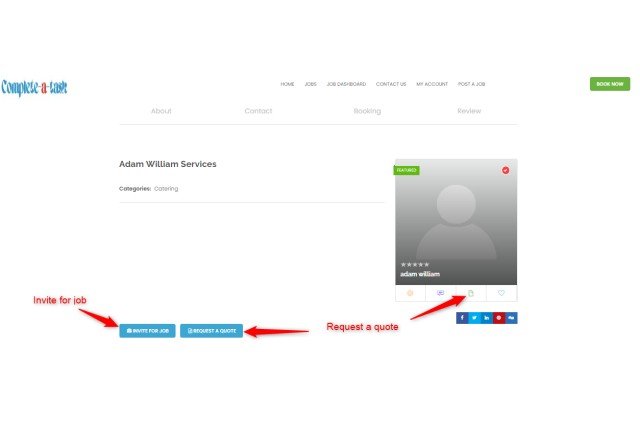
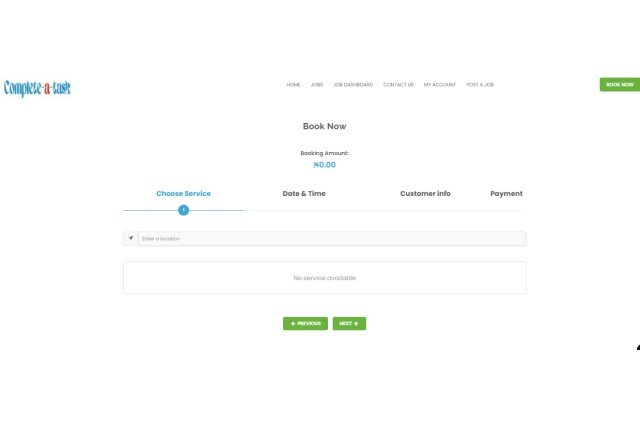
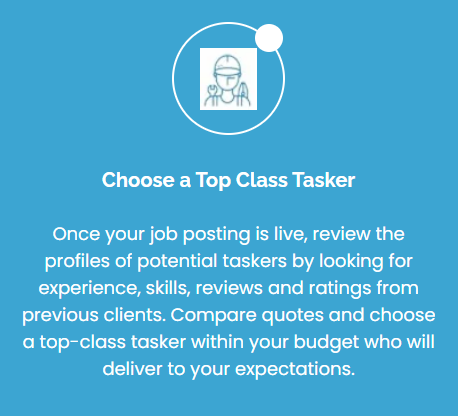
Customers can check Jobs applied for by logging into their account. From the customer’s dashboard, they will get a bell notification at the top right hand corner. From the left menu, click on My Jobs to get the list of jobs applied for. Another way to check for jobs applied for is to click on Job Dashboard at the top of the homepage menu, all previous and current jobs will be listed. Click on the number of applicants that applied for the job or recommended provider to view their profile, when satisfied you can invite the provider for the job and click on book now to book the provider for the job. Complete the booking process and make payment using either Stripe or Wire transfer. Service provider will receive a notification and an email with all the job details.
How To Mark a Job done as Complete
When a job is completed, and the customer is satisfied, they can mark it as complete in order for the provider to be paid. Customer login into their dashboard and click on My Jobs or Job Dashboard from the homepage. On the particular job, click ACTION by the far right to select option Mark As Complete. Another way is to click Booking from the dashboard, look for the booking, click option on the right hand box and select View Booking, the booking opens then you can Mark As Complete.